SMS / Messaging Terms
Effective date: June 16, 2026
This page describes the Bookwire SMS program and how users consent to receive text messages from Bookwire.
Who receives messages and how they opt in
Bookwire is job-dispatch software used by trade-service businesses (for example, electrical contractors). The people who receive our SMS are the business owners, dispatchers, and technicians who have a Bookwire account — not their end customers. End customers receive email confirmations only and do not receive SMS from this program.
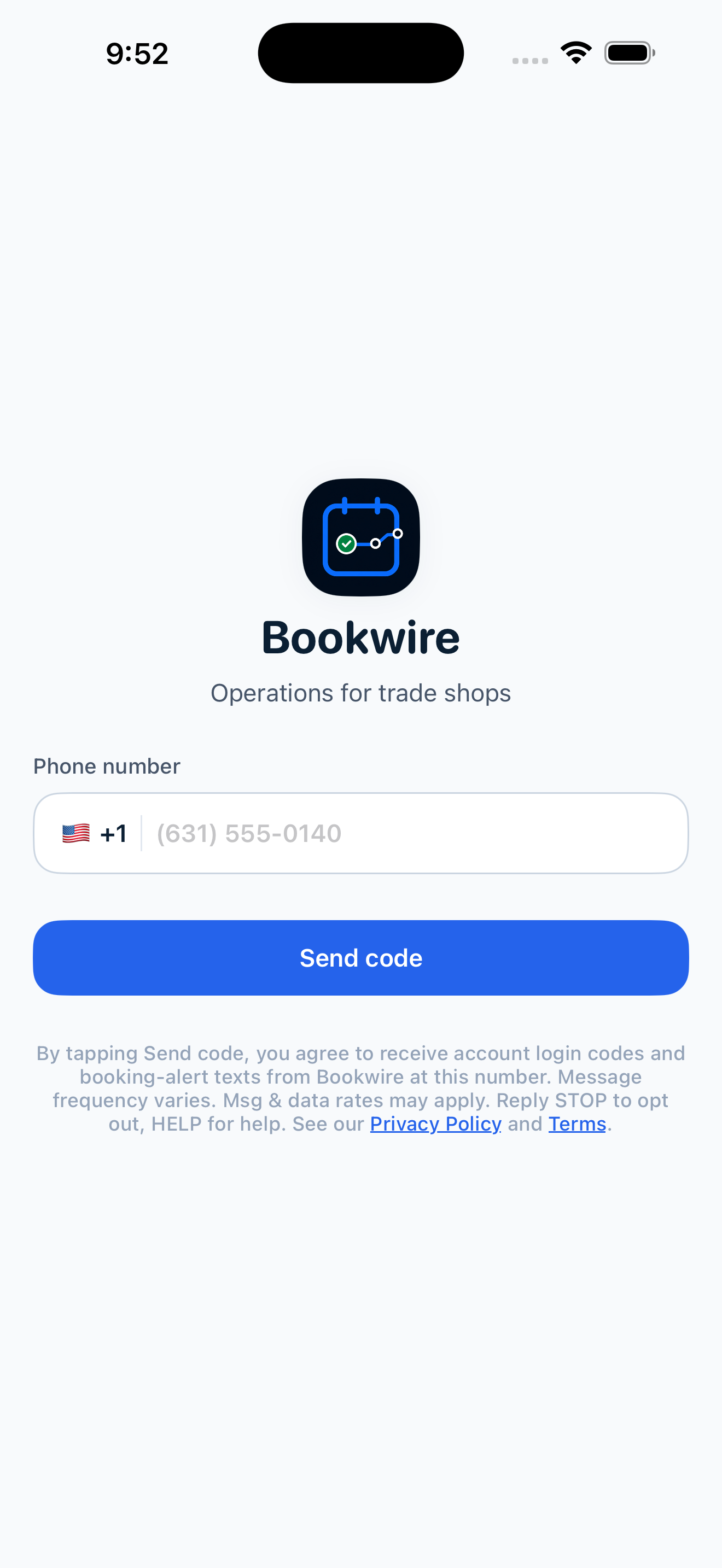
A user opts in to SMS when they create or sign in to their Bookwire account. On the sign-in screen of the Bookwire mobile apps, the user enters their mobile number and taps “Send code.” Directly beneath that button, the following consent disclosure is displayed:
By tapping “Send code,” you agree to receive account login codes and booking-alert texts from Bookwire at this number. Message frequency varies. Msg & data rates may apply. Reply STOP to opt out, HELP for help. See our Privacy Policy and Terms.
Tapping “Send code” with that disclosure shown constitutes the user’s opt-in.
What the opt-in screen looks like
Below is the actual sign-in screen of the Bookwire mobile app, showing the phone-number field, the “Send code” button, and the consent disclosure exactly as every user sees it at the moment of opt-in:
The second opt-in path: team invites from the web dashboard
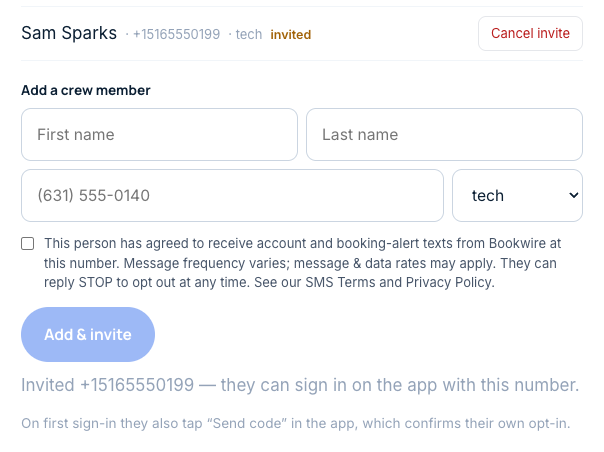
A business owner or dispatcher can also add a teammate from the Bookwire web dashboard (behind login). That form requires an explicit, unchecked-by-default confirmation that the teammate has agreed to receive Bookwire texts — the invite cannot be submitted without it:
This person has agreed to receive account and booking-alert texts from Bookwire at this number. Message frequency varies; message & data rates may apply. They can reply STOP to opt out at any time. See our SMS Terms and Privacy Policy.
Adding a teammate sends at most one invitation text. Ongoing messages do not begin until that person installs the Bookwire app, enters their own number, and taps “Send code” with the disclosure shown above — completing their own opt-in (a double opt-in). The same consent confirmation is required whenever a new booking-alert number is added on the dashboard.
Managing SMS preferences in the app
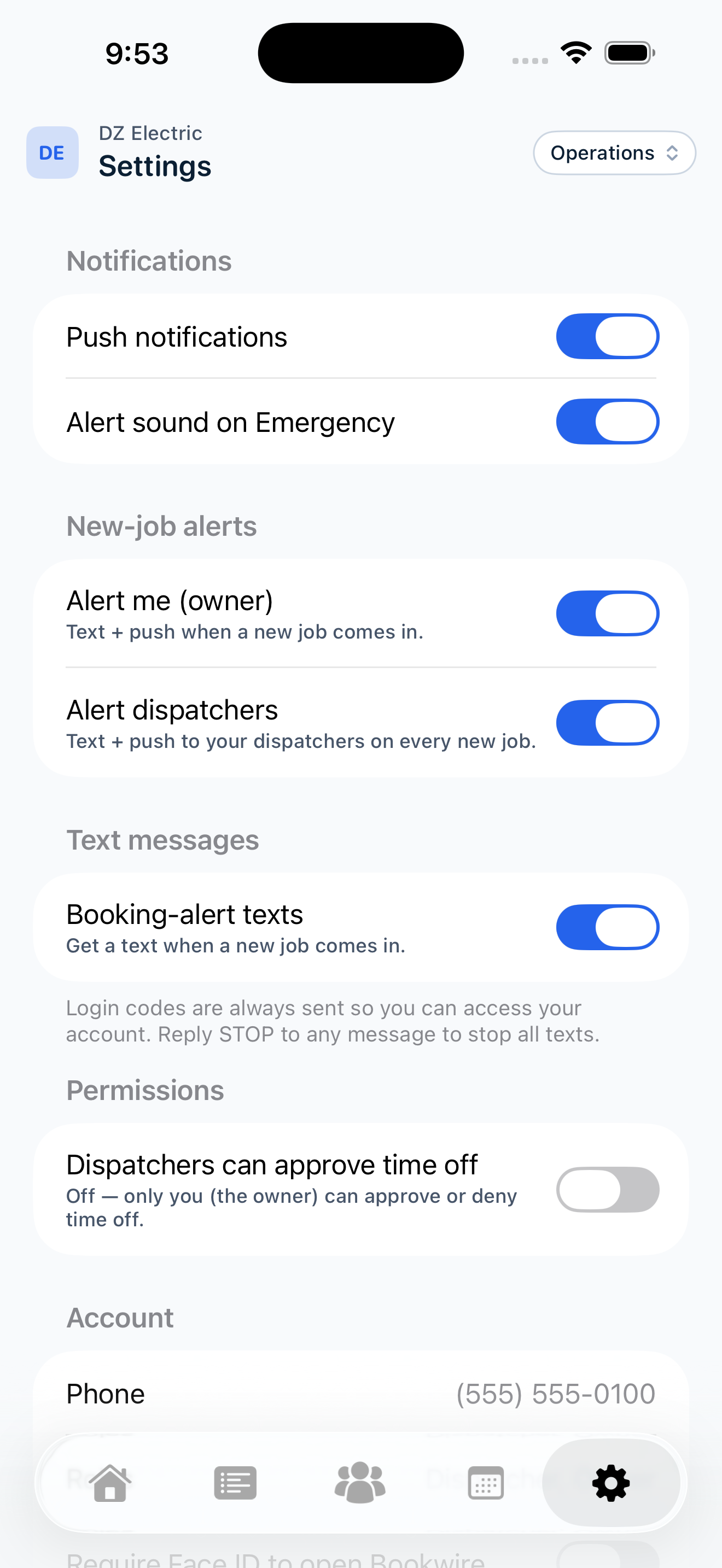
Users can turn booking-alert texts off or on at any time, directly in the app: open the Bookwire app → Settings tab (gear icon in the bottom bar) → Text messages → toggle “Booking-alert texts.” Login codes are always sent so users can access their account, and replying STOP to any message stops all texts regardless of this setting.
Types of messages
Account login codes — a one-time passcode to sign in.
Booking / job alerts— operational notifications when a job is created or assigned for the user’s business.
Message frequency
Message frequency varies based on the user’s account activity (login attempts and incoming jobs).
Cost
Message and data rates may apply, as set by the user’s mobile carrier.
Opt-out and help
Reply STOP to any message to unsubscribe. Reply HELP for help, or contact emilio@mybookwire.com.
Privacy
We do not sell, rent, or share mobile numbers or SMS opt-in information with third parties or affiliates for marketing purposes. See our Privacy Policy for full details and our Terms of Service.